 Troop Campfire
Your public troop site is generated automatically, but you control what it says and shows. This article explains how to update your description, visibility toggles, and contact info to make your public site a great first impression for prospective families.
How to customize your public site
- Open troopcampfire.app and tap Account Settings (top right).
- Tap Organization.
- Tap Public Website. (On a wide screen you can also reach it straight from Troop Settings in the left navigation.)
- Turn on Enable Public Website. Nothing is published until this is on.
- Edit the troop description using the rich text editor — this appears at the top of your public site and helps prospective families understand what makes your troop special.
- Toggle what's shown publicly — Show Event Calendar, Show Event Descriptions, and Show Photo Gallery let you control what visitors see.
- Pick a Website Theme. The choices follow your program: Outdoors for a troop, Adventure for a pack, Expedition for a crew, Nautical for a ship, Trailblazer for Girl Scouts, and Community for any of them.
- Write a Welcome Message if you want a short greeting above the description.
- Under Custom Pages, tap Manage Pages to add your own pages. Each one gets an address on the public site.
- Check your Custom URL Slug. This is the last part of your address, as in
troopwebsite.org/your-slug; Campfire tells you whether the one you want is available. - Update contact info and configure your custom domain if needed.
- Save. Changes appear on your public site within a few minutes.
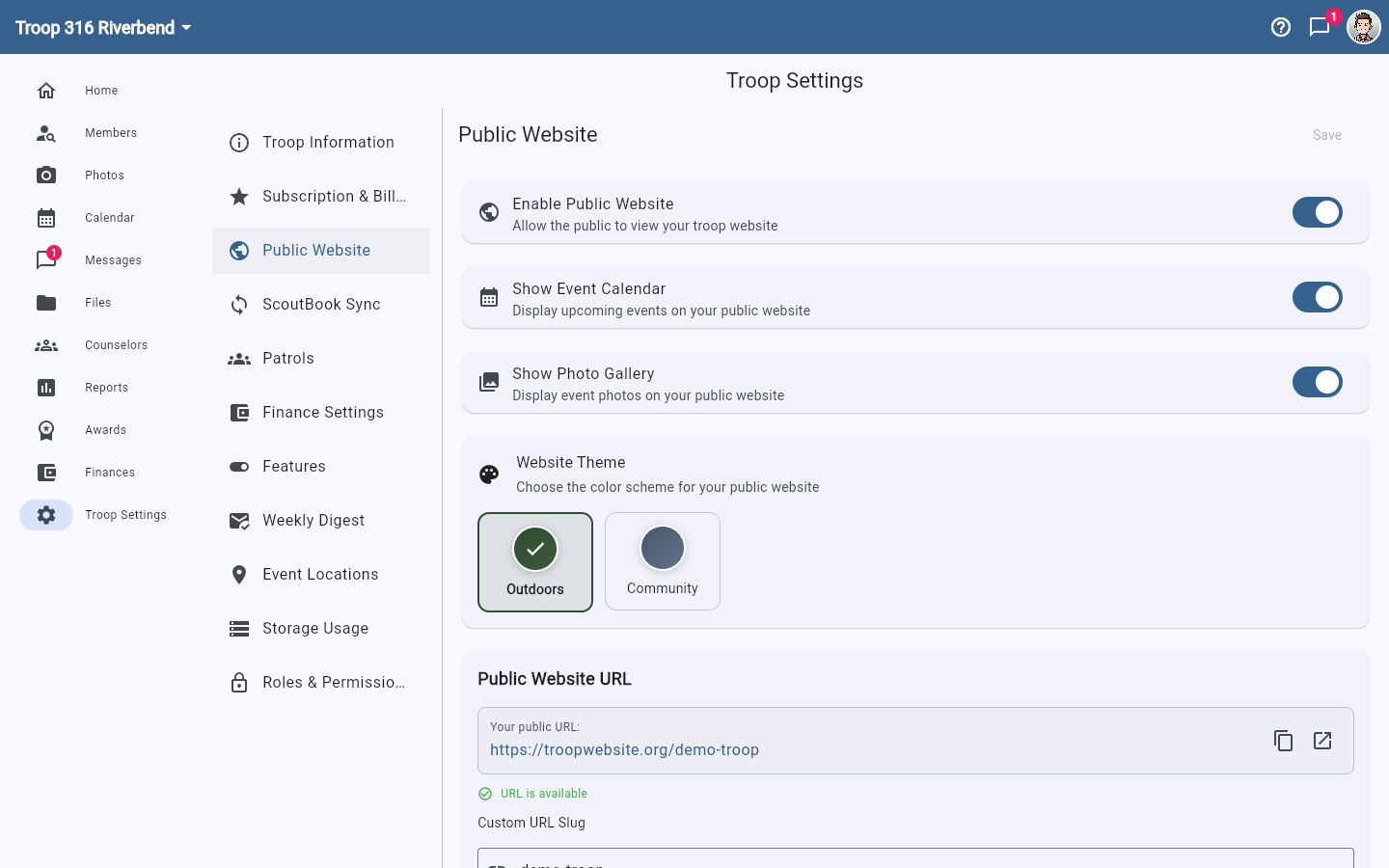
What you can control
- Enable Public Website — the master switch; off means nothing is public
- Troop description (rich text editor)
- Show Event Calendar — whether your upcoming events are shown publicly (title, date, and location)
- Show Event Descriptions — whether the write-up on each event is included. Leave this off if descriptions contain meeting details, phone numbers, or drop-off instructions. Members still see the full description in the Campfire app.
- Show Photo Gallery — whether your photo gallery is shown publicly
- Website Theme — Outdoors, Adventure, Expedition, Nautical, Trailblazer, or Community, depending on your program. Community is available to every program.
- Welcome Message — a short greeting above the description
- Custom Pages — your own pages, from Manage Pages, each with its own address
- Custom URL Slug — the
troopwebsite.org/your-slugpart of your address - Contact information
- Custom domain (Campfire Pro feature)
Think before you turn on the photo gallery
Show Photo Gallery puts your troop's event photos on a page anyone can open, including search engines — and most troop photos are pictures of other people's children. Check with your families and your chartered organization about what they're comfortable being public, and look through the gallery yourself first. Screenshots of documents and paperwork often end up in photo albums by accident, and they'll be published too. You can turn this off again at any time.
Your public site also includes a Join page for prospective families, though this isn't individually configurable from settings.