 Troop Campfire
Adding an event to your troop calendar is quick from any device. Once saved, your members can see the event, RSVP, and get reminders automatically — no extra setup needed.
How to create an event
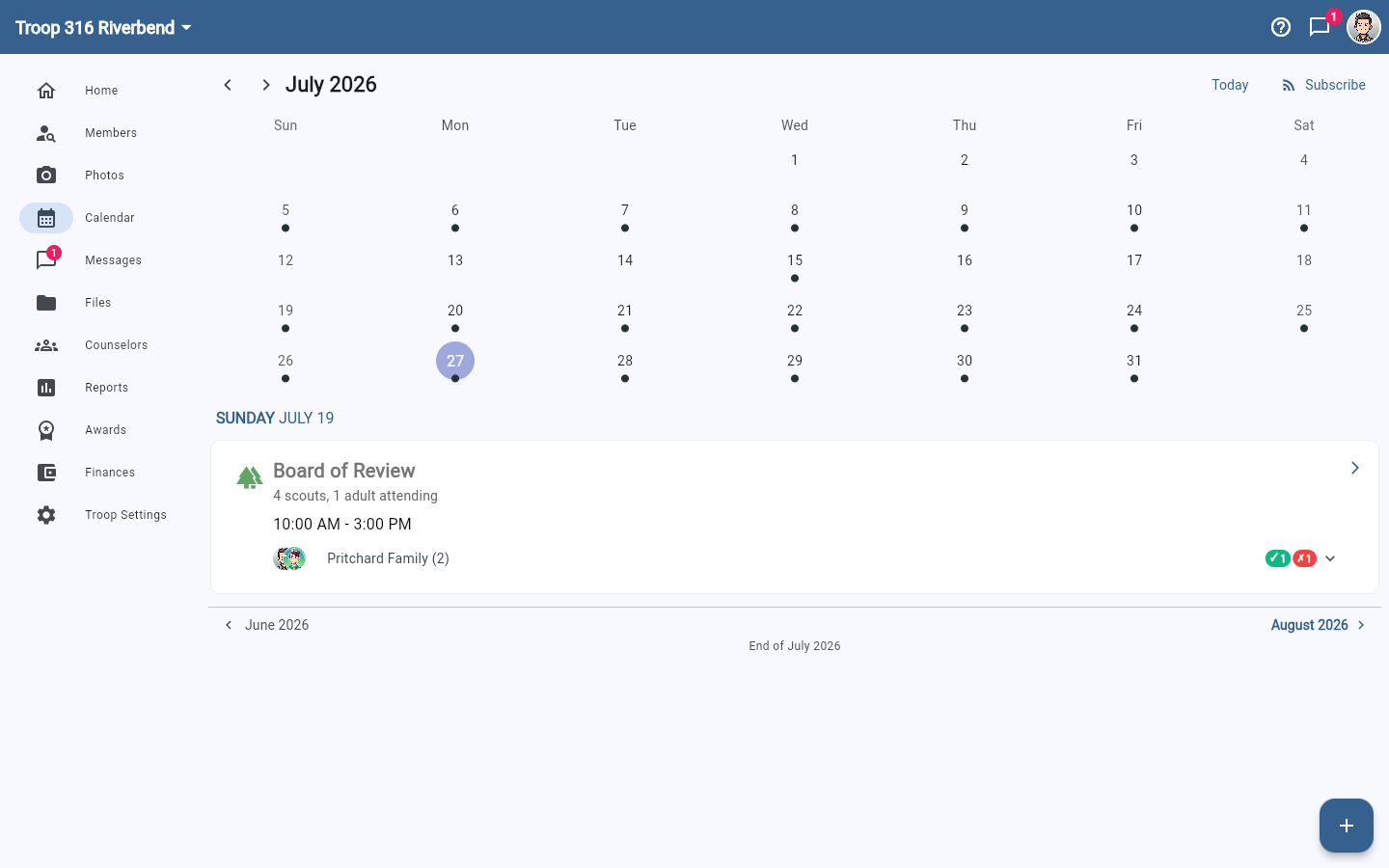
- Open troopcampfire.app or the Campfire mobile app and go to the Calendar tab in the bottom navigation.
- Tap the + floating action button to start a new event.
- Enter a title — for example, "Troop Meeting" or "Fall Campout."
- Set the date, start time, and end time.
- Add a location. Members can tap it to get directions.
- Write a description with any details families need to know — what to bring, cost, permission slip deadline.
- Tap Save. The event appears on the calendar immediately and all troop members can RSVP right away. To edit later, open the event and tap the edit icon (pencil) in the top right.
Subscribe to the calendar
Subscribe at the top right of the Calendar gives you a feed you can add to Apple Calendar, Google Calendar, or Outlook, so troop events appear alongside everything else in a family's week. Encourage families to do this once when they join — it does more for attendance than any reminder.
RSVP tracking
RSVP tracking is built in — every event shows a running count of Attending, Maybe, Not Attending, and No Response automatically. You don't need to enable it separately. See Track event RSVPs for more.