 Troop Campfire
Every Campfire event includes automatic RSVP tracking — no setup needed. This article explains how to view responses and follow up with members who haven't replied.
View RSVPs for an event
- Open any event from your Calendar.
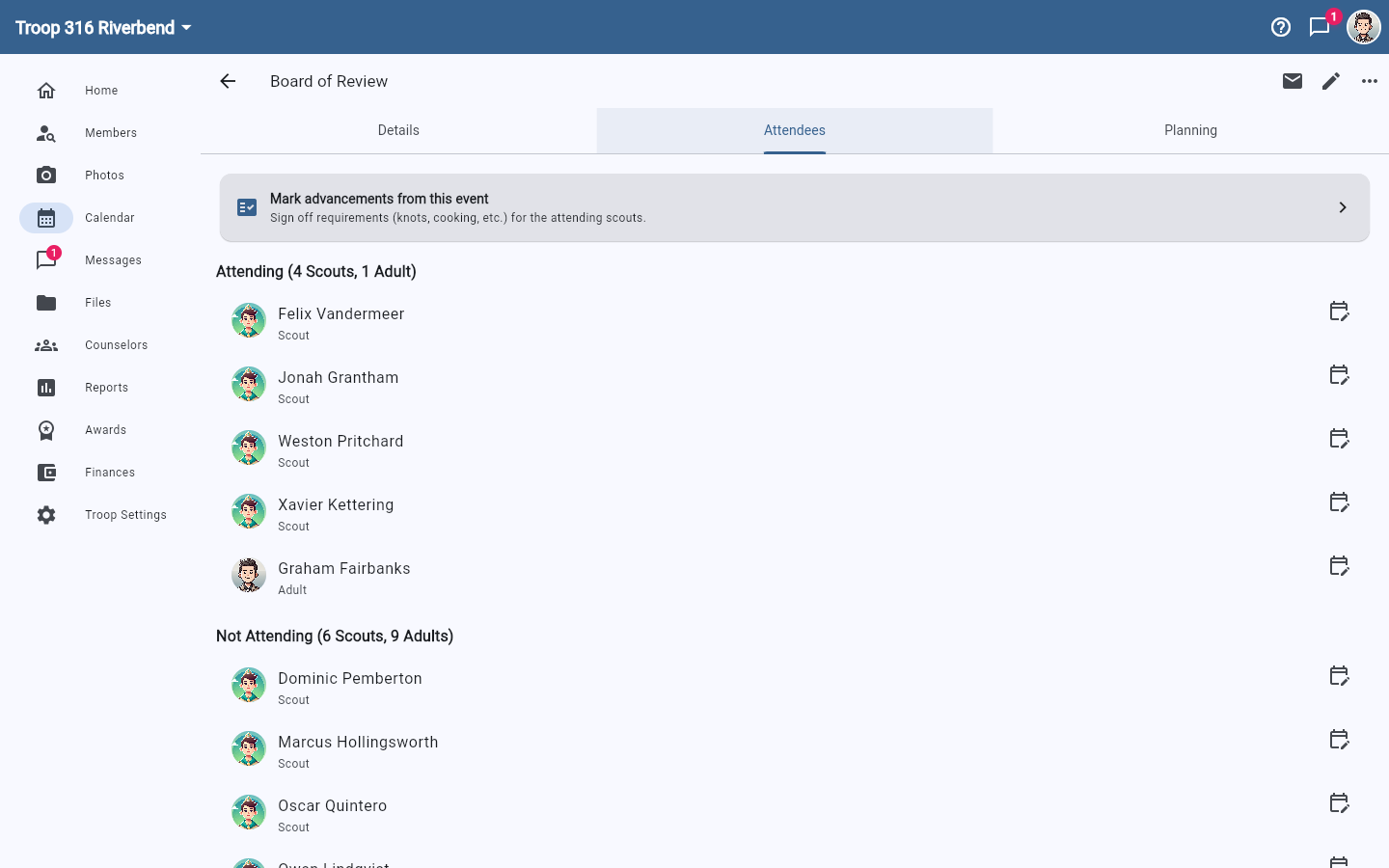
- Tap the Attendees tab on the event screen.
- RSVPs are grouped by status: Attending, Maybe, Not Attending, and No Response. Each heading counts Scouts and adults separately — for example Attending (4 Scouts, 1 Adult).
Follow up with members who haven't responded
To reach people who haven't replied, tap the envelope icon in the top right of the event screen — its tooltip reads Email About Event. Campfire opens a message with the event's recipients already filled in, so you don't have to build the list yourself.
No one-tap reminder
There isn't a dedicated "Send reminder" feature today. Emailing about the event is the closest workflow for chasing non-responders. If you don't see the envelope icon, you don't have the send-email permission — ask a unit admin.
The rest of the event toolbar
Beside the envelope sit a pencil icon (Edit Event) and a 3-dot menu (More actions). The 3-dot menu holds Duplicate Event, Cancel Event, and Delete Event — plus Uncancel Event once an event has been canceled. Canceling leaves the event on the calendar clearly marked, which families usually find less confusing than an event that silently disappears, and you can still email everyone about a canceled event.
What members see
- Members get a notification when a new event is created
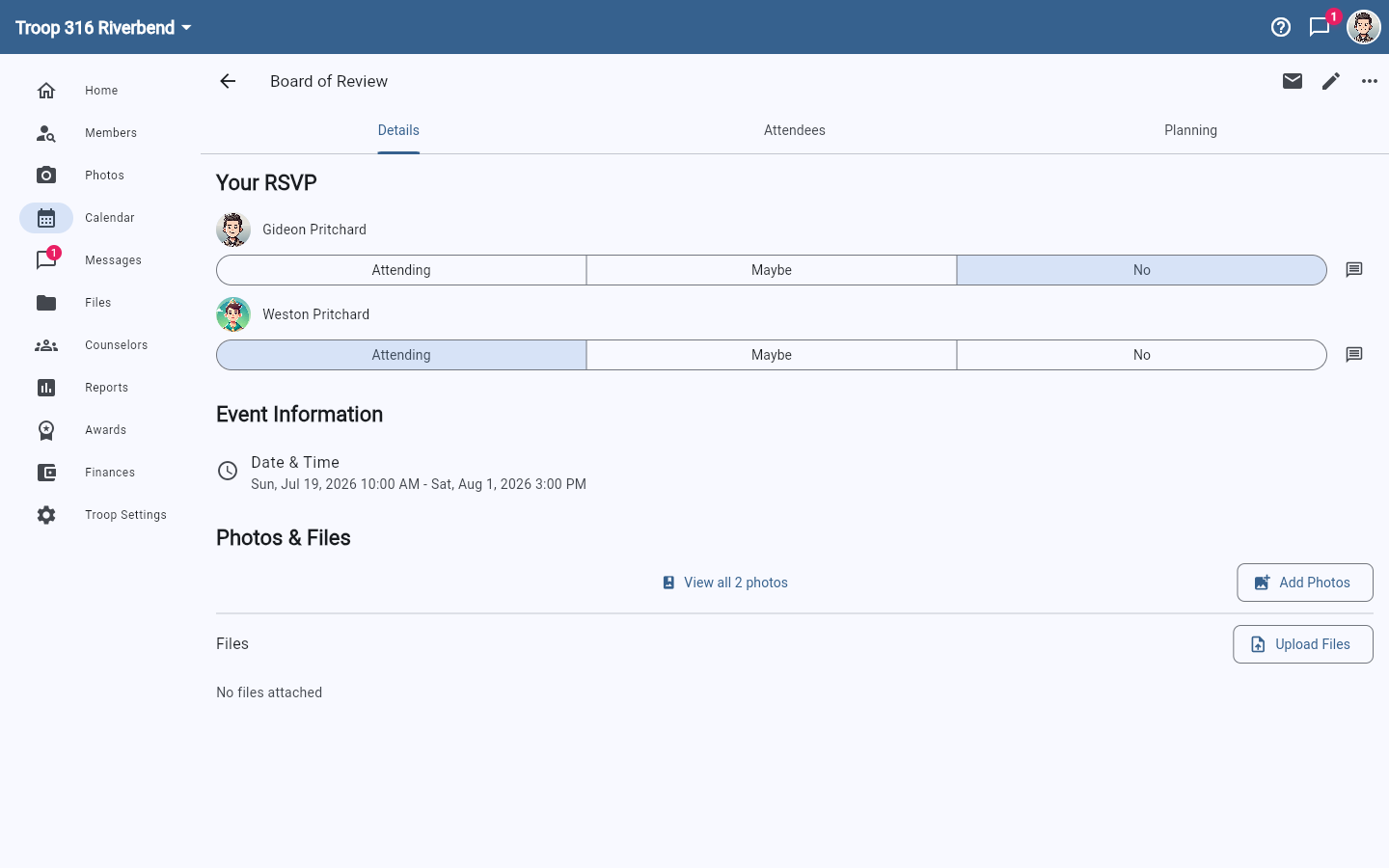
- Members RSVP from the event detail screen using a segmented button — Attending, Maybe, or No. Their response shows up under Attending, Maybe, Not Attending, or No Response in the leader view.
- Parents can RSVP on behalf of their Scout — a parent with two Scouts sees a separate row of buttons for each person in their family, so one adult can answer for the whole household in a couple of taps
RSVP counts update in real time so you always have an accurate headcount as the event approaches.