 Troop Campfire
After a meeting or campout you've often covered the same requirement with the whole patrol — tying knots, cooking a meal, demonstrating first aid. Instead of opening every Scout's profile to sign each one off, use Bulk Sign-Off to mark the same requirements complete for many Scouts at once.
It works across every rank in your program — search by topic and Bulk Sign-Off pulls matching requirements from Scouts BSA, Cub Scouts, Venturing, or Sea Scouts (whichever your unit uses). It also covers merit badges: pick a badge, check the requirements you taught, and sign off the whole class.
Bulk Sign-Off needs the Approve Rank Requirements or Approve Merit Badges permission, along with View All Advancement. Scoutmasters and Assistant Scoutmasters can sign off both. Merit Badge Counselors can sign off merit badges. For other roles, ask your unit admin.
Open Bulk Sign-Off from the Attendees of an event
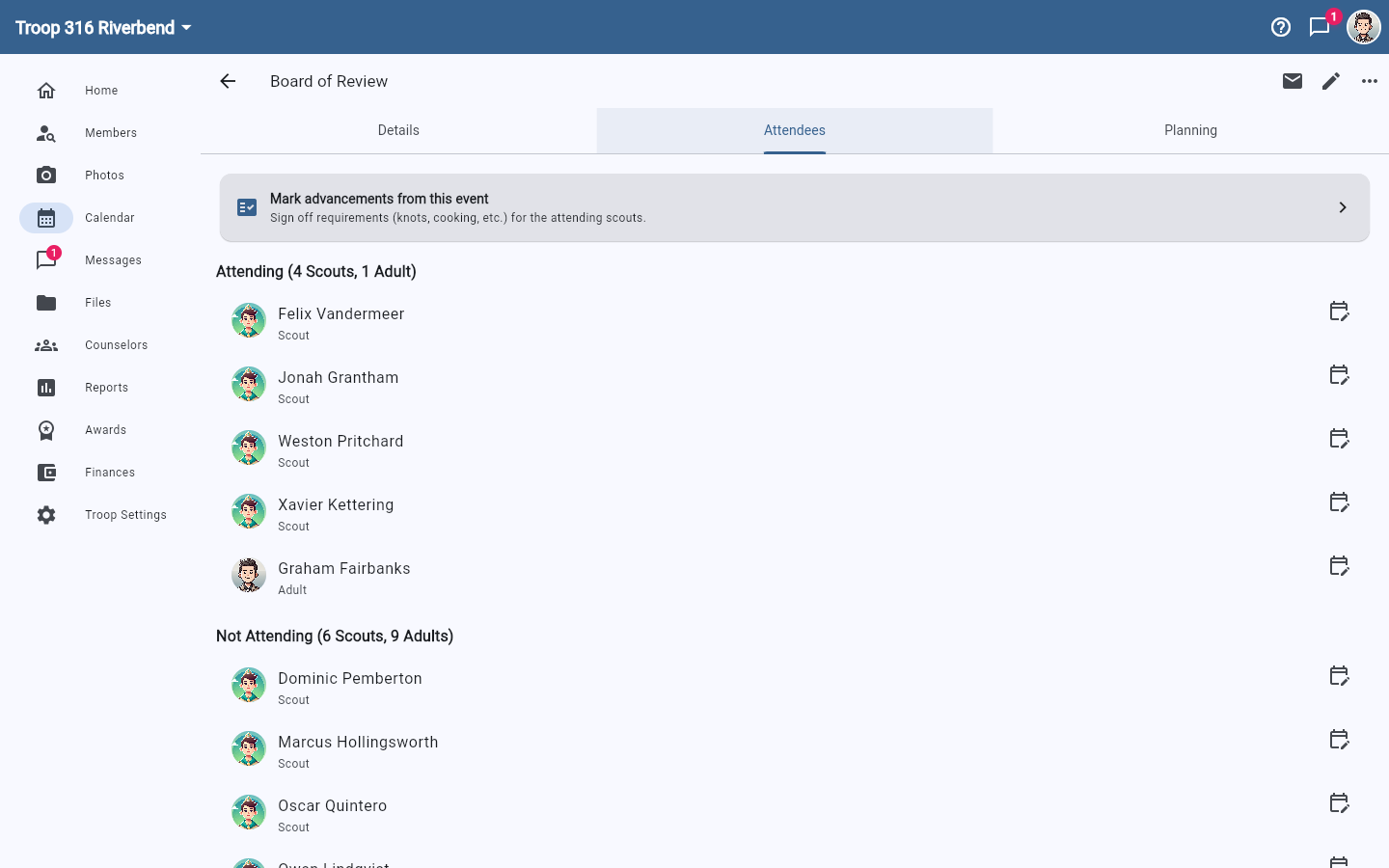
This is the easiest path when you're signing off something you just did with the kids at a meeting or outing — the scouts who RSVP'd attending are pre-selected for you.
- Open the event in Calendar and tap the Attendees tab.
- Tap the Mark advancements from this event card at the top.
- Bulk Sign-Off opens with every attending Scout already checked. Uncheck anyone who shouldn't get credit.
Open Bulk Sign-Off from Reports
Use this path when you're signing off something that didn't happen at a single event, or when you want to pick the Scouts manually.
- Open Reports from the navigation.
- Tap the Bulk Sign-Off tile.
- Pick the Scouts you want from the list — a name filter and a Select all shortcut help with large rosters.
Sign off merit badge requirements
Use this after a merit badge class, when several Scouts finished the same requirements together. If you can sign off both ranks and merit badges, tap Merit badges at the top of the page first.
- Pick the badge. The badges you counsel are listed first, and you can search for any other.
- Check the requirements the Scouts completed, or tap Select all. Select all skips the options under a "do ONE of the following" requirement, so check the ones you covered yourself.
- Confirm the date completed and check the Scouts who were there.
- Tap Sign off.
You can also start from any Scout's page for that badge: tap the group icon at the top of the page, and the badge and that Scout are already chosen.
Two kinds of Scouts are greyed out in the list. A Scout who has already earned the badge needs nothing more. A Scout who started the badge under older requirements is working from a different list, so sign those off on the Scout's own badge page. Bulk Sign-Off marks requirements only; signing off the badge itself is still done on each Scout's badge page.
Find rank requirements and sign off
- Type a word or two in the search box — for example knot, cooking, or first aid. Matches across every rank in your program appear below.
- Check the requirements you want to sign off. Each one shows the requirement text and which rank it belongs to.
- Confirm the date completed. Opened from an event, it starts on the event's date; otherwise it starts on today. Change it if needed.
- Add optional notes if you want context recorded on the sign-off (e.g. "Demonstrated on summer campout").
- Review the count on the sticky bar at the bottom — for example "3 new sign-offs for 5 scouts" — and tap Sign off.
What happens if a Scout already has the requirement done
Bulk Sign-Off checks every Scout's existing progress before writing. If a requirement is already marked complete for a particular Scout, that one is silently skipped — the original date, signer, and notes stay exactly as they were.
The summary on the sticky bar shows both numbers — new sign-offs and skips — before you submit, and the confirmation message after the save reports how many were skipped because they were already complete.