 Troop Campfire
When you sync your roster from Scoutbook, Campfire imports each Scout, parent, and leader as a member. If some of those people already had Campfire accounts, you'll see them appear twice in your members list — once from the original account and once from the Scoutbook import.
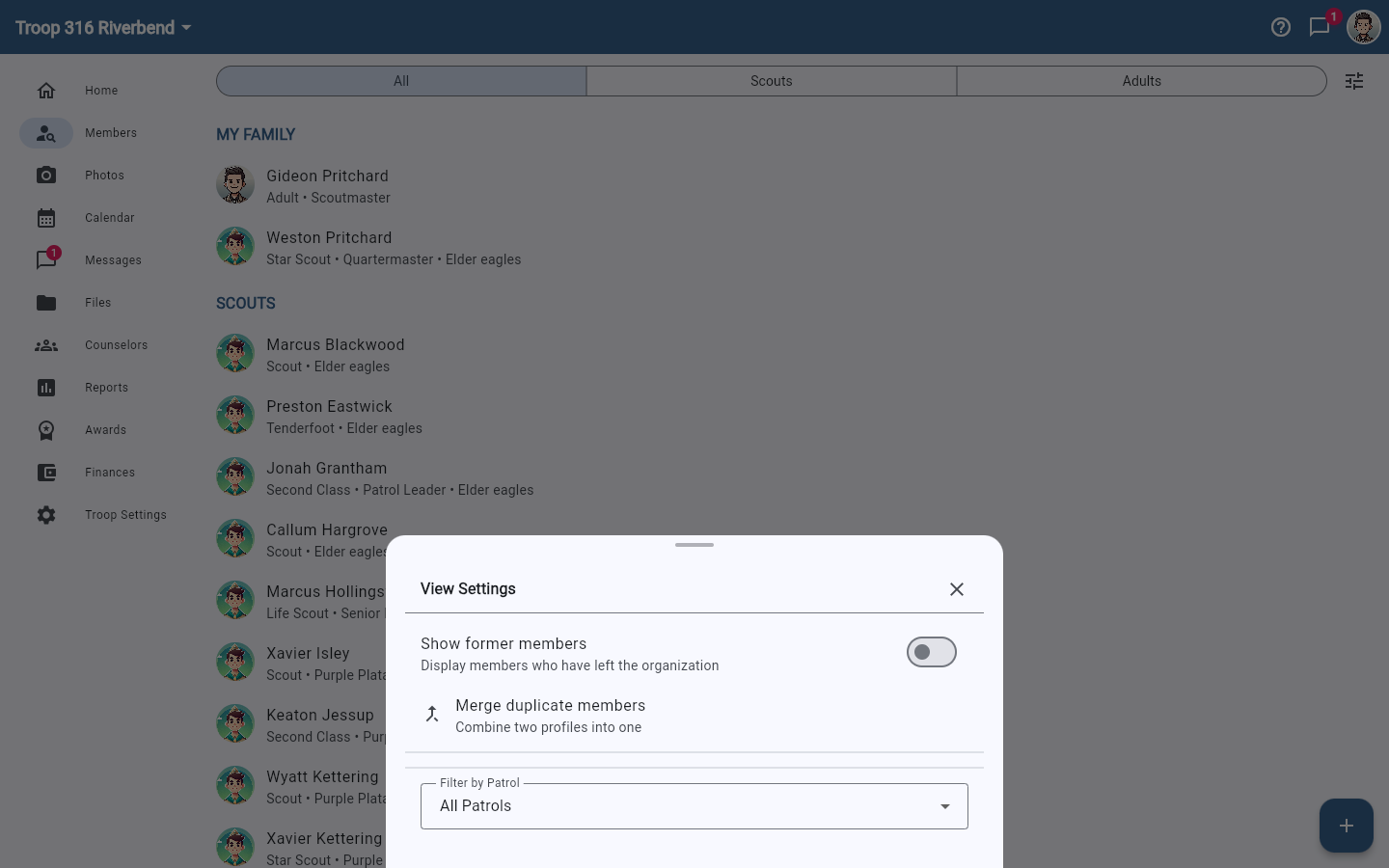
Use the Merge duplicate members tool to combine the duplicates into a single account, preserving advancement history, contact info, and family relationships.
How to merge duplicate members
- Open Campfire and go to Members in the navigation to open your roster.
- Tap the View settings icon (sliders icon) in the top right of the members list. A bottom sheet titled View Settings opens — tap Merge duplicate members in it.
- Pick the two member records to combine, review, and confirm.
What gets merged
- Advancement records and rank history from both accounts
- Contact information (email, phone, address)
- Family relationships (parents linked to Scouts)
- Event RSVPs and historical attendance
The merged member will keep the original account's login, so anyone already signed in won't lose access.