 Troop Campfire
If push notifications or emails from Campfire aren't arriving, the issue is almost always a settings mismatch — either in the app or in your phone's system settings. This article walks through the most common fixes.
Fix push notifications
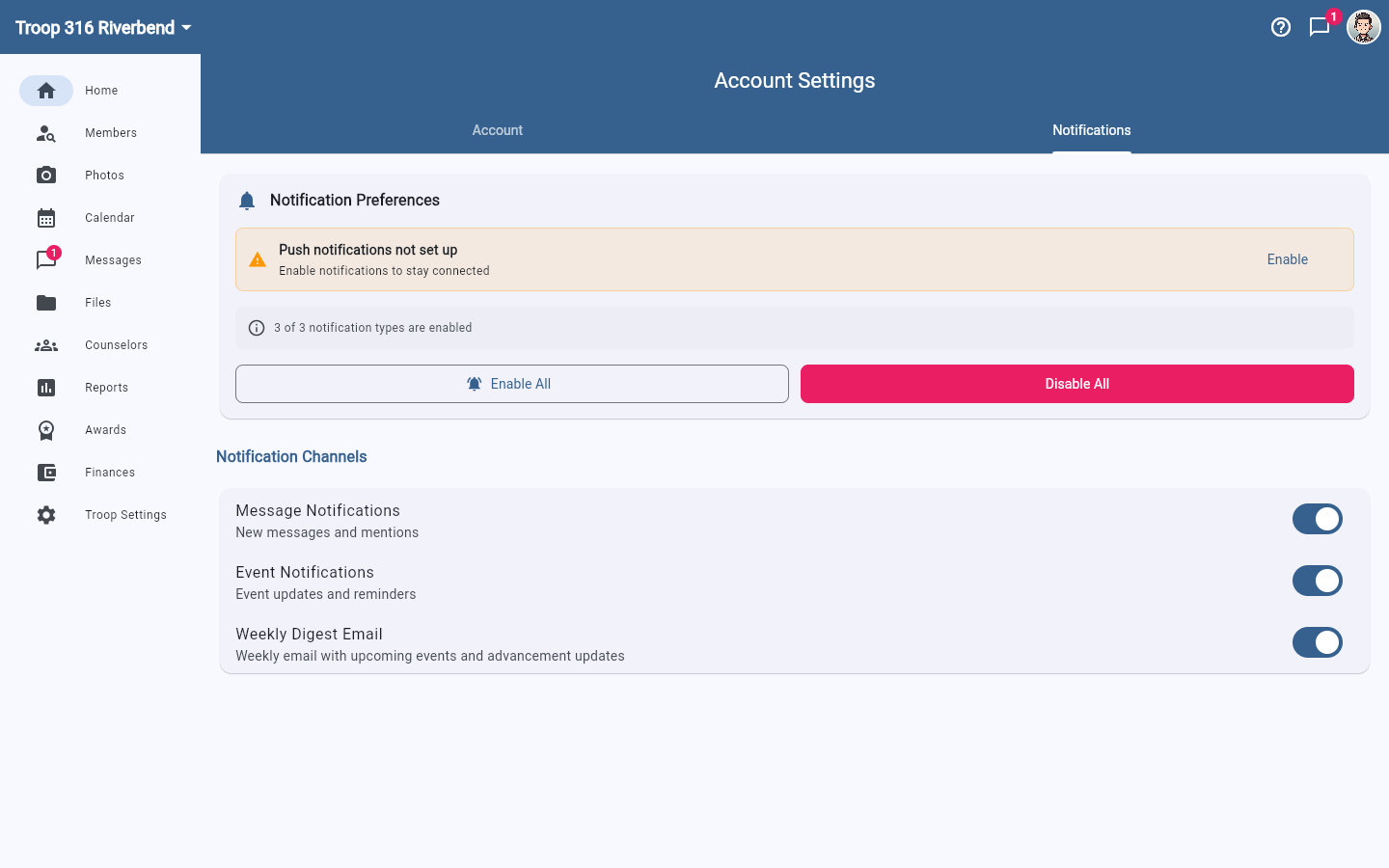
- Open troopcampfire.app or the Campfire app and go to Account Settings → Notifications. If a yellow Push notifications not set up banner appears at the top, tap Enable on it and accept the permission prompt. This is the most common cause by far — the toggles below can all be on while this device was never registered for push at all.
- Confirm that Message Notifications and/or Event Notifications are turned on for the types of alerts you expect. There's also an Enable All button if you'd rather not check them one at a time.
- Open your phone's system Settings app and go to Notifications (iOS) or App notifications (Android).
- Find Campfire in the list and make sure notifications are allowed at the system level. If they were blocked when you first installed the app, they'll be off here even if Campfire thinks they're enabled.
- Restart the Campfire app after making changes.
Not getting emails from Campfire?
- Check your spam or junk folder for emails from noreply@troopcampfire.com.
- Add noreply@troopcampfire.com to your contacts or safe-senders list to prevent future filtering.
- If it's specifically the weekly summary you're missing, check that Weekly Digest Email is on under Account Settings → Notifications — it's a separate toggle from the other two.
Push and email are set per person
Every member controls their own notification settings, so a leader can't turn them on for someone else. If one family says they're not hearing from you, walk them through the steps above rather than changing anything on your end.
Still not working?
Try signing out of Campfire and signing back in — this re-registers your device for push notifications. If the issue persists, contact support and we'll investigate further.