 Troop Campfire
Patrols are how a troop actually operates, so Campfire lets you mirror them on the roster. Once members are assigned you can filter the directory by patrol, which makes headcounts and gear checks a lot less painful.
Manage patrols
- Tap Account Settings (top right) → Organization → Patrols. On a wide screen, Troop Settings in the left navigation gets there in one tap.
- Tap Add patrol and give it a name.
- Tap a member in the list to assign them to a patrol.
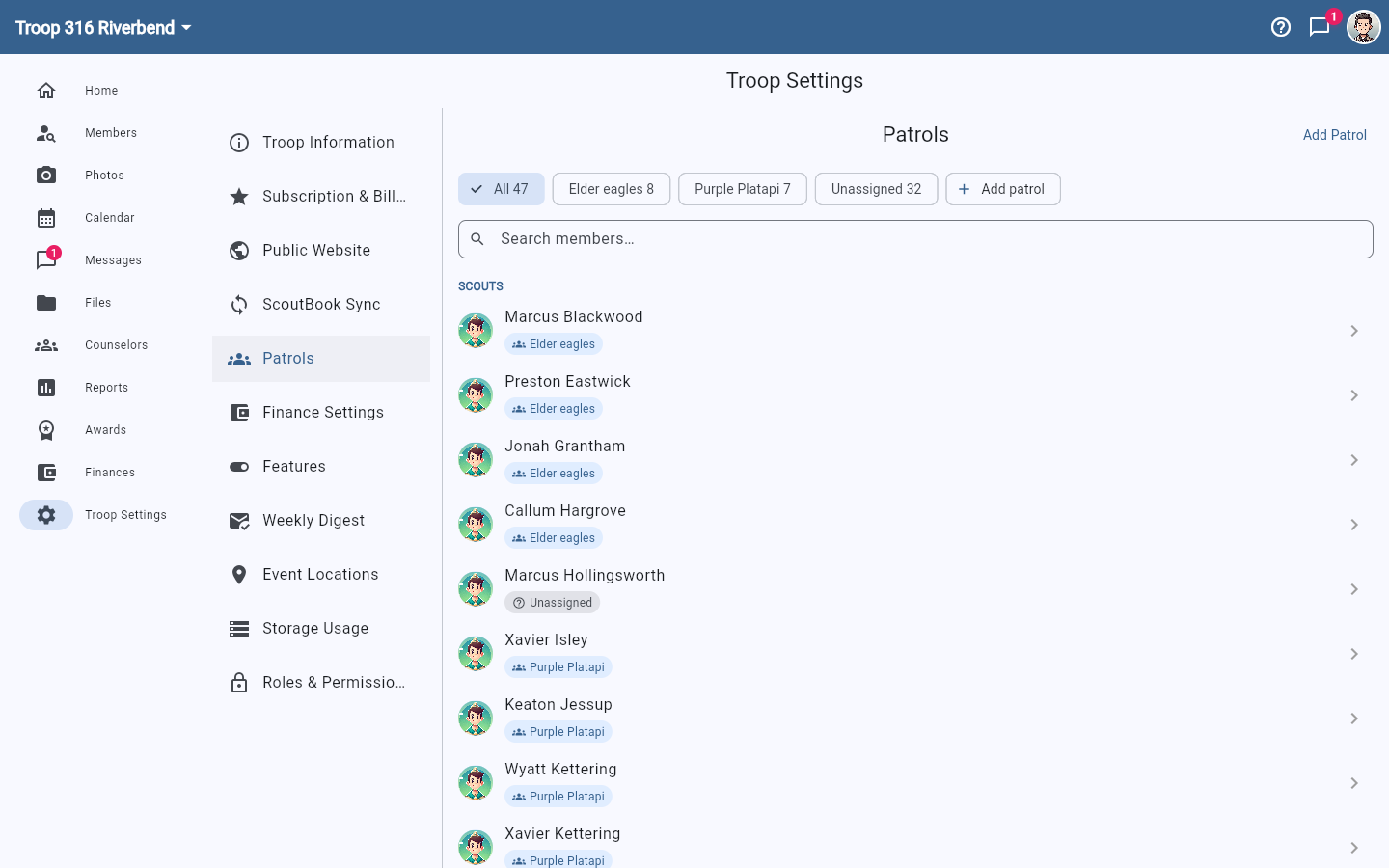
The chips along the top show each patrol with its member count, plus an Unassigned chip. That unassigned number is the useful one — it tells you how much of the roster still needs sorting, and it usually spikes after a Scoutbook import or a new-Scout intake.
To rename or remove a patrol, use the 3-dot menu beside it and choose Rename or Delete.
Cub Scout packs get Dens instead
The page adapts to your program. A Cub Scout pack sees Dens rather than Patrols, and dens map to the Cub ranks — Lion, Tiger, Wolf, Bear, Webelos, Arrow of Light — rather than being free-form names you invent.
Once patrols exist, open the View Settings sheet on the Members page (the sliders icon, top right) and use Filter by Patrol to narrow the roster.